With Bizzy’s mobile phone enrichment, you can access direct phone numbers of your contacts. This means fewer gatekeepers, a higher chance of reaching the right decision-maker, and more efficient outbound outreach.
Bizzy automatically enriches contacts with personal mobile phone numbers using multiple data providers, so you get the best possible coverage without extra manual work.
How mobile phone enrichment works in Bizzy
Bizzy works with three mobile phone number providers:
Prospeo
Forager
Cleon1
To maximize the number of contacts enriched with a personal mobile phone number, Bizzy uses a waterfall enrichment approach.
What does waterfall enrichment mean?
When Bizzy looks for a mobile phone number, it checks the providers in sequence:
Bizzy first checks the first provider
If no personal mobile phone number is found, Bizzy automatically checks the second provider
If needed, Bizzy then checks the third provider
As soon as a valid personal mobile phone number is found, the enrichment stops.
This approach ensures:
Maximum coverage of mobile phone numbers
Higher chances of finding a personal mobile phone number
Consistent data quality across different markets
Improve success rates for outbound calling.
You don’t need to select or manage providers manually. Bizzy handles this automatically in the background.
How to activate mobile phone number providers
Mobile phone number enrichment is not activated automatically. Before users can access personal mobile phone numbers, the admin of the Bizzy environment must activate mobile phone number providers.
The available providers are Prospeo, Forager and Cleon1.
Once the providers are activated, all users in the organisation will have access to personal mobile phone numbers.
Activation steps (admin only)
Go to the Bizzy landing page
Click on your profile icon in the top-right corner
Select Integrations from the dropdown menu
Scroll down to Mobile phone number providers
Click on one of the providers (Prospeo, Forager or Cleon1)
Click Accept all terms & conditions
That’s it. Mobile phone number enrichment is now activated.
Note: Only admins can activate mobile phone number providers. If you are not an admin, please contact your admin to enable this feature.
How to use mobile phone enrichment in Bizzy
Once mobile phone number enrichment is activated, all users can retrieve phone numbers in the following ways:
1. From a company page in Bizzy
When you look up a company in Bizzy and want to find a contact:
Open the company page
Go to the People tab
Search for the contact you are looking for
Once found, click on the phone icon next to the contact’s name
Bizzy will then check whether one of the connected mobile phone number providers has a personal phone number available for that contact.
If a phone number is found, a tag appears showing the phone number and the provider it was retrieved from
If no phone number is found, you can:
Try looking up another contact at the same company, or
Check the general company phone number on the Overview tab

2. Via exports or CRM pushes
When exporting a company list or pushing data to a CRM, Bizzy will guide you through a number of steps.
During this flow, you will be asked:
How many companies and contacts you want to export or push
Whether you want to include only contacts with an email address or all contacts
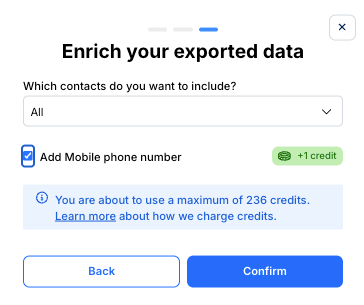
Whether you want to add mobile phone numbers to the export or CRM push
At a later step, you can choose to include personal mobile phone numbers. Bizzy will then enrich the contacts during the export or push.
Selecting the right contacts for your export or CRM push
To make sure the right contacts are included, Bizzy offers two recommended approaches.
Option 1 - Use contact filters
If you want to export or push contacts with a specific job title, it’s best to use the contact filters beforehand.
For example:
Apply a contact filter for Marketing Manager
Export or push the companies
Bizzy will include Marketing Managers as contacts, enriched with their mobile phone numbers (if available)
This is the most efficient way to ensure your export only contains relevant contacts.
Option 2: Save contacts manually from a company list
You can also manually select contacts before exporting:
Go through the companies in your list
Save the contacts you want to include
In the top-left corner, click New and select Saved from the dropdown
You now see a saved company list, where each company contains the contacts you saved
If you export or push this saved company list, Bizzy will include the saved contacts for those companies, along with their mobile phone numbers (if available).
Was this article helpful?
That’s Great!
Thank you for your feedback
Sorry! We couldn't be helpful
Thank you for your feedback
Feedback sent
We appreciate your effort and will try to fix the article