The Bizzy Sales Agent is designed to continuously deliver relevant, high-quality leads based on your ideal customer profile (ICP). This article walks you through the full workflow, from lead delivery to feedback and ongoing optimisation.
1. Weekly Lead Delivery
Each week, your Sales Agent delivers a predefined number of leads. The exact volume depends on your Total Addressable Market (TAM): all companies that could potentially be relevant for your use case based on your ICP setup. The standard is 10 leads / week.
The person assigned during the agent setup will receive an email notification when a new batch of leads is ready.
These new leads appear in the Lead Inbox of your agent, under the “New” tab.
Note: you can always change the person who receives the notifications through the settings page of each agent (agent overview > hover over agent > settings > notifications )
2. Reviewing New Leads
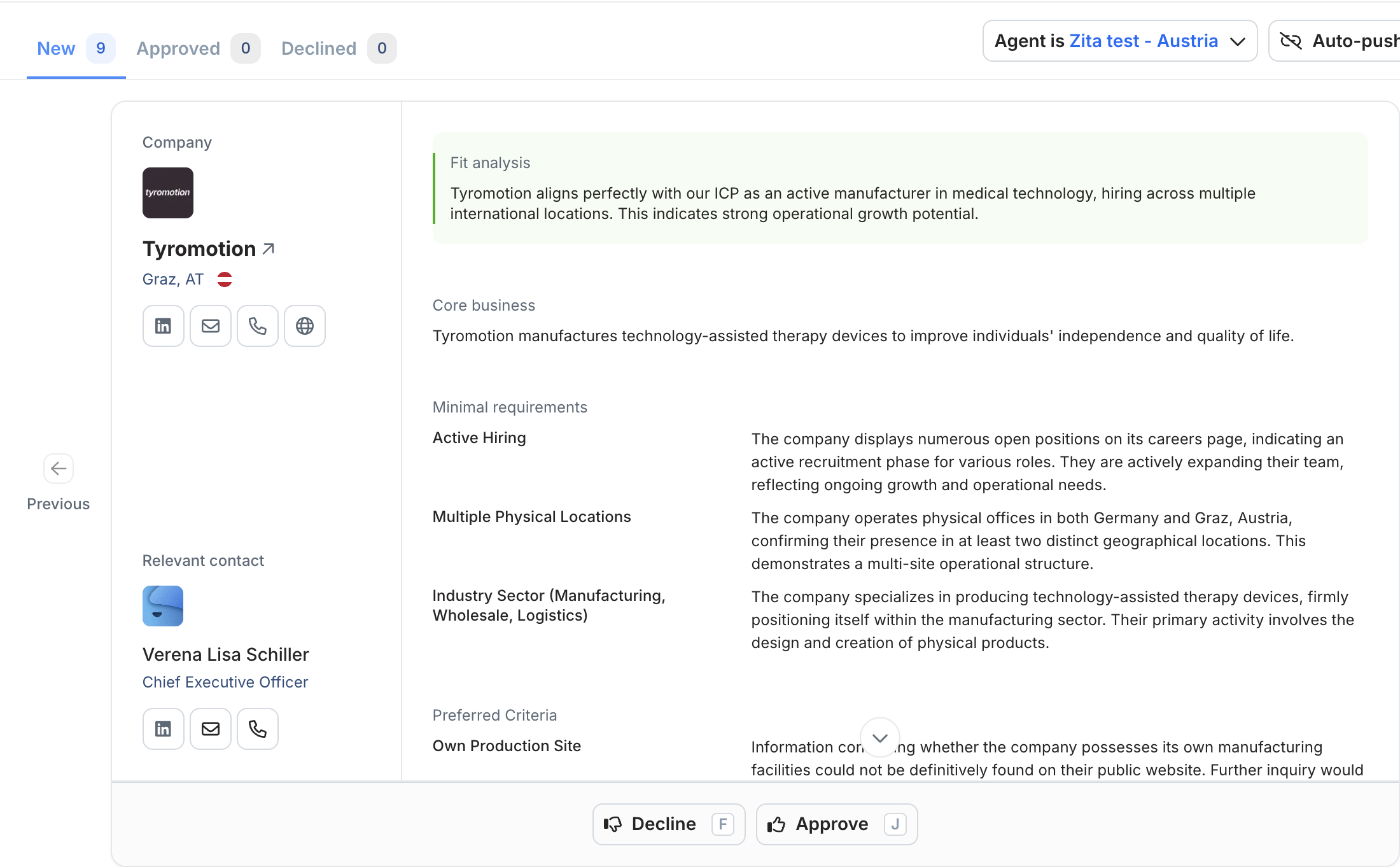
For each proposed lead, you can easily assess whether the company is relevant for your use case using the information provided. What to review:
- Fit Analysis: A clear explanation of why Bizzy considers this company a good match for your ICP.
- Core Business Summary: A short, structured summary of what the company does.
- Minimal Requirements & Preferred Criteria: A direct comparison between the criteria you defined during setup, and how well the company matches those criteria.
- Company Page (optional deep dive): By clicking on the company name, you are redirected to the Bizzy company page, where you can explore more detailed and contextual information.
3. Reviewing the Proposed Contact
For every company, Bizzy proposes one relevant contact, based on the persona titles you selected during setup.
When publicly available, we provide: phone number, email address and linkedIn profile.
If the proposed contact is not the right person, you can:
Open the company page
Navigate to the People tab
Browse all employees associated with that company and select a different contact
4. Evaluating a Lead
After reviewing the company and contact, you provide feedback by choosing one of the following options.
1. Approve the Lead
Choose Approve when the company is relevant for your use case.
Note: this is not a judgment on whether a deal can be closed. It does not reflect call outcomes, response rates, or sales skills.It purely evaluates whether the agent identified a relevant company.
2. Decline the Lead
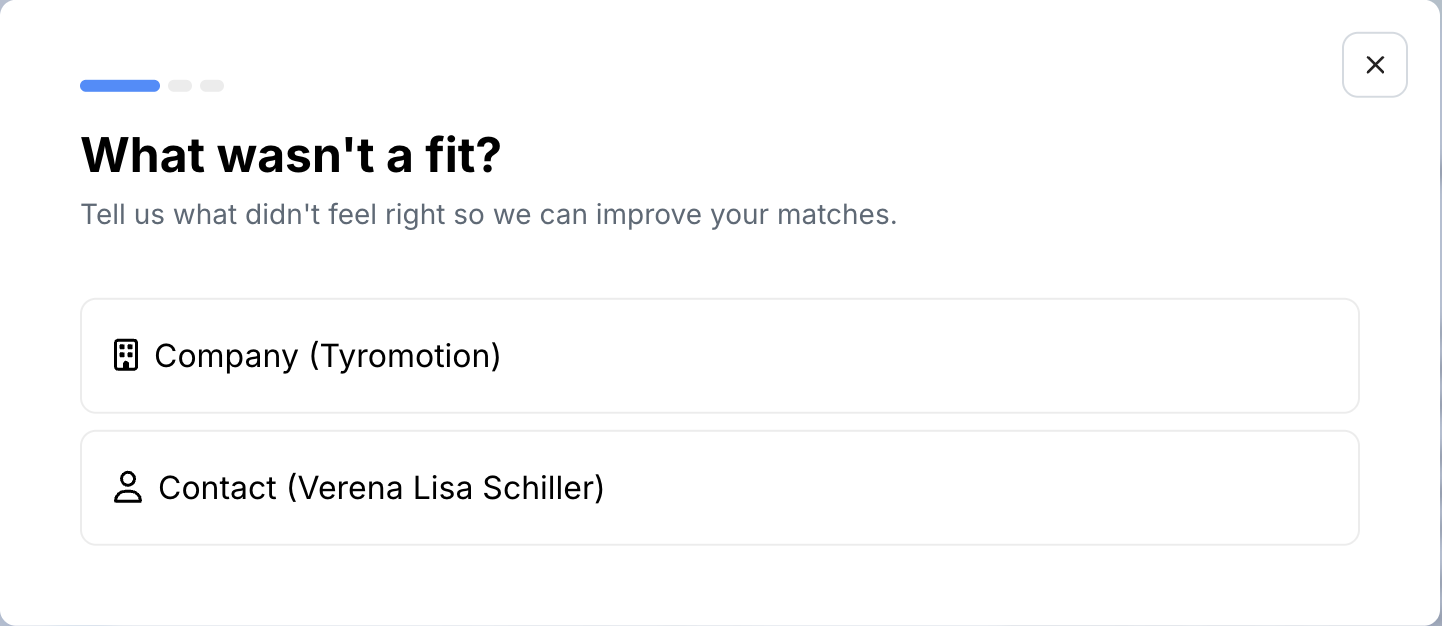
Choose Decline when:
The company is not relevant for your use case, or
The company or contact information is incorrect.
The agent will then ask for feedback.Feedback Options:
- Company-level feedback: The company is not a good fit or the company information is incorrect
- Contact-level feedback: The contact is not relevant or the contact information is incorrect
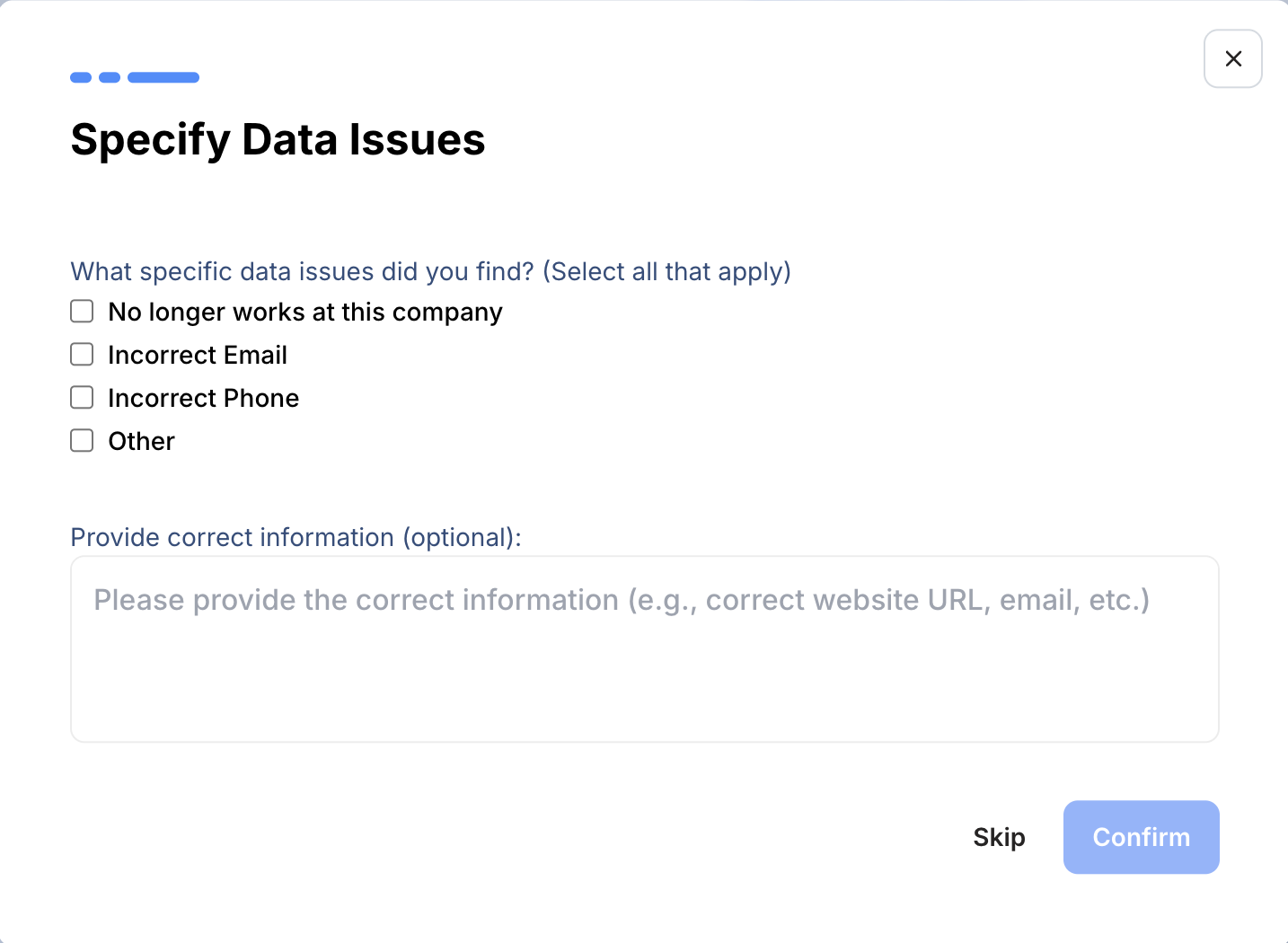
If data is incorrect, you’ll be asked to specify which data is wrong, so we can correct it.
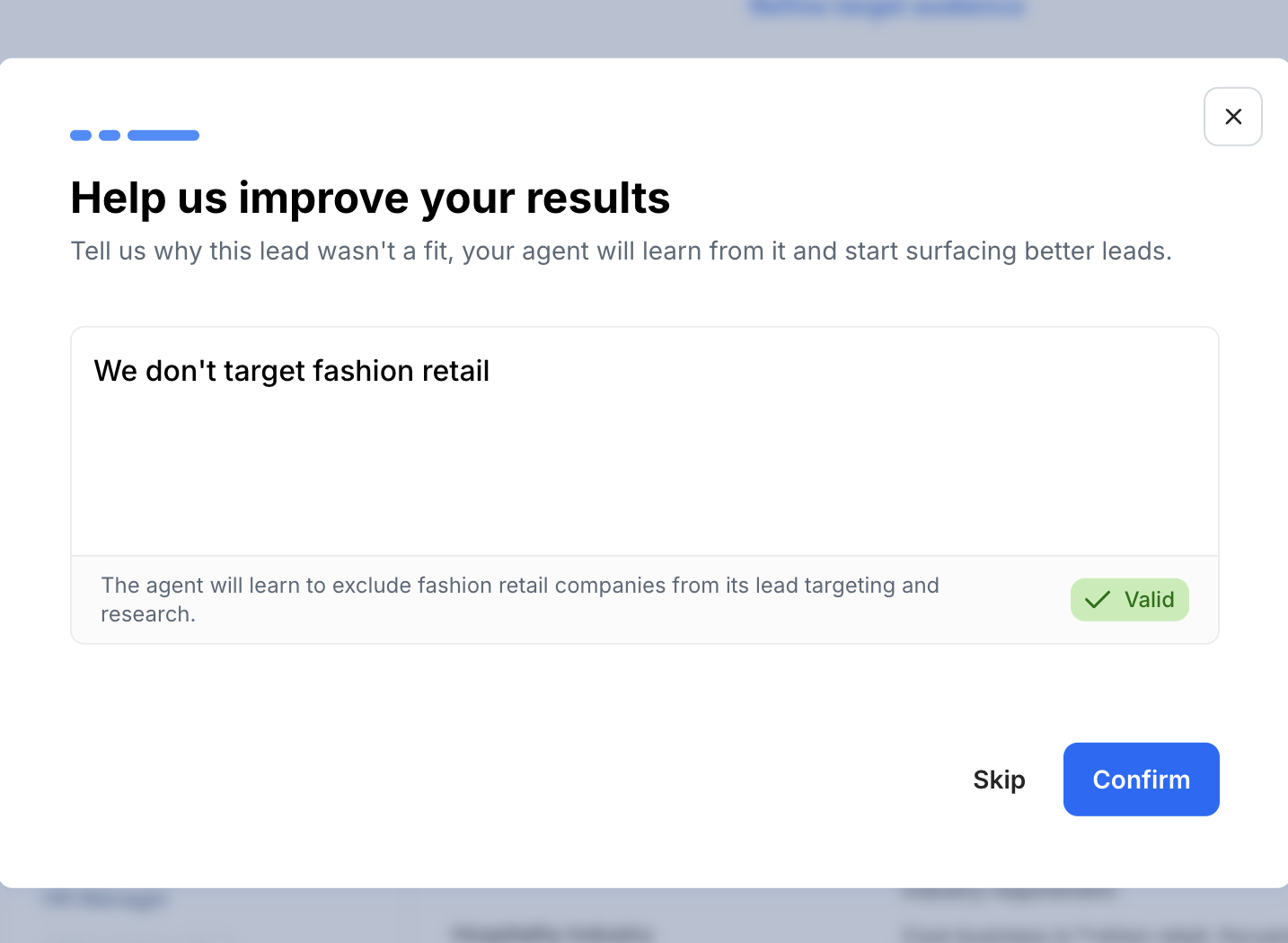
If the company or contact is simply not relevant, the agent will ask why. This feedback is crucial to improving future lead quality. Be specific and descriptive and try to clearly correct the agent
Example:
❌ “Not fashion”
✅ “We don’t target fashion retail companies”
If the feedback is clear enough, the agent will confirm it's valid feedback. Click Confirm to ensure it is taken into account for future searches.
5. Improving Your Agent Over Time
Once you’ve evaluated all leads in the batch:
The agent analyzes your feedback
It identifies patterns and opportunities to improve lead quality
It proposes suggestions to refine your ICP setup
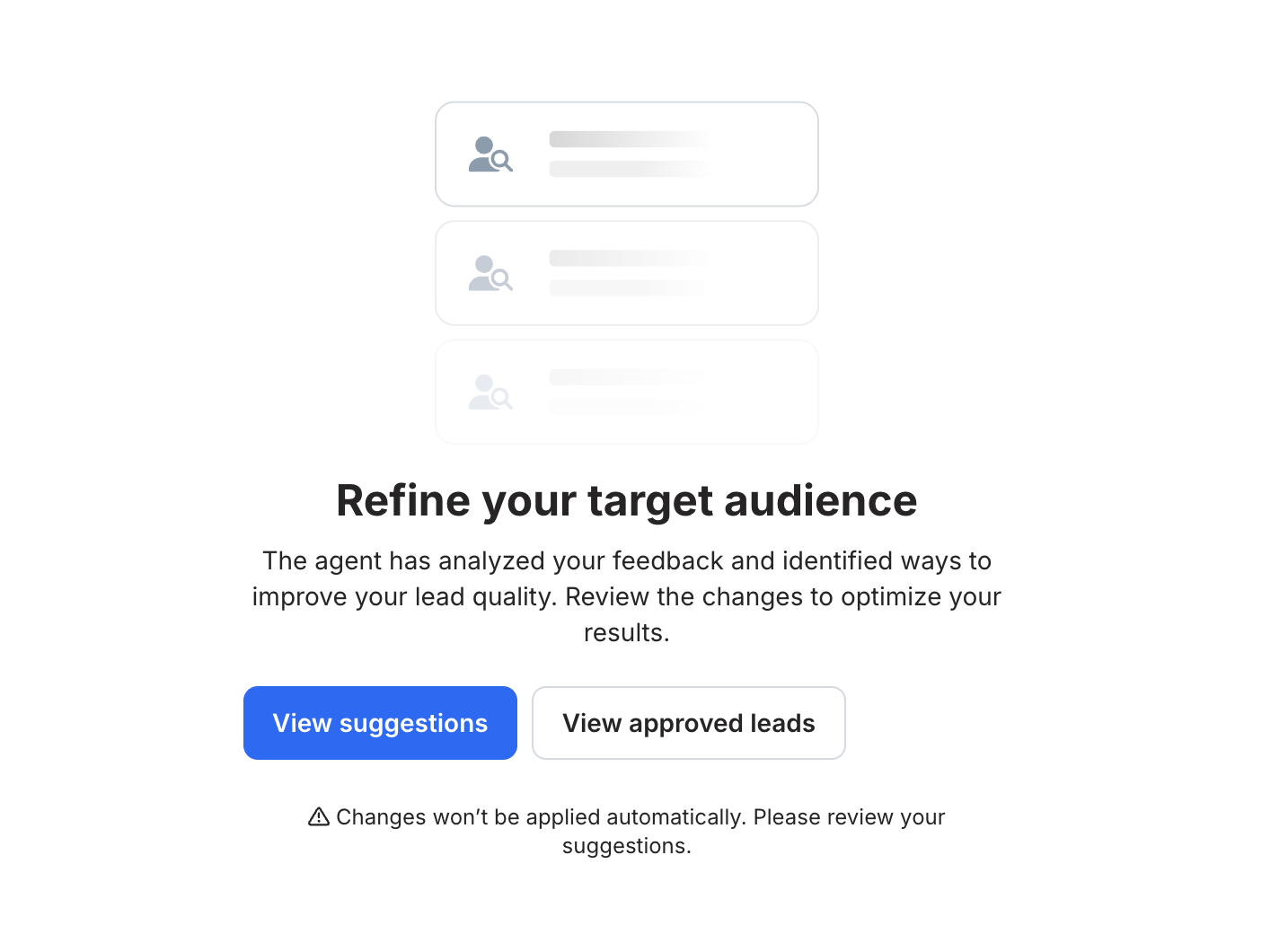
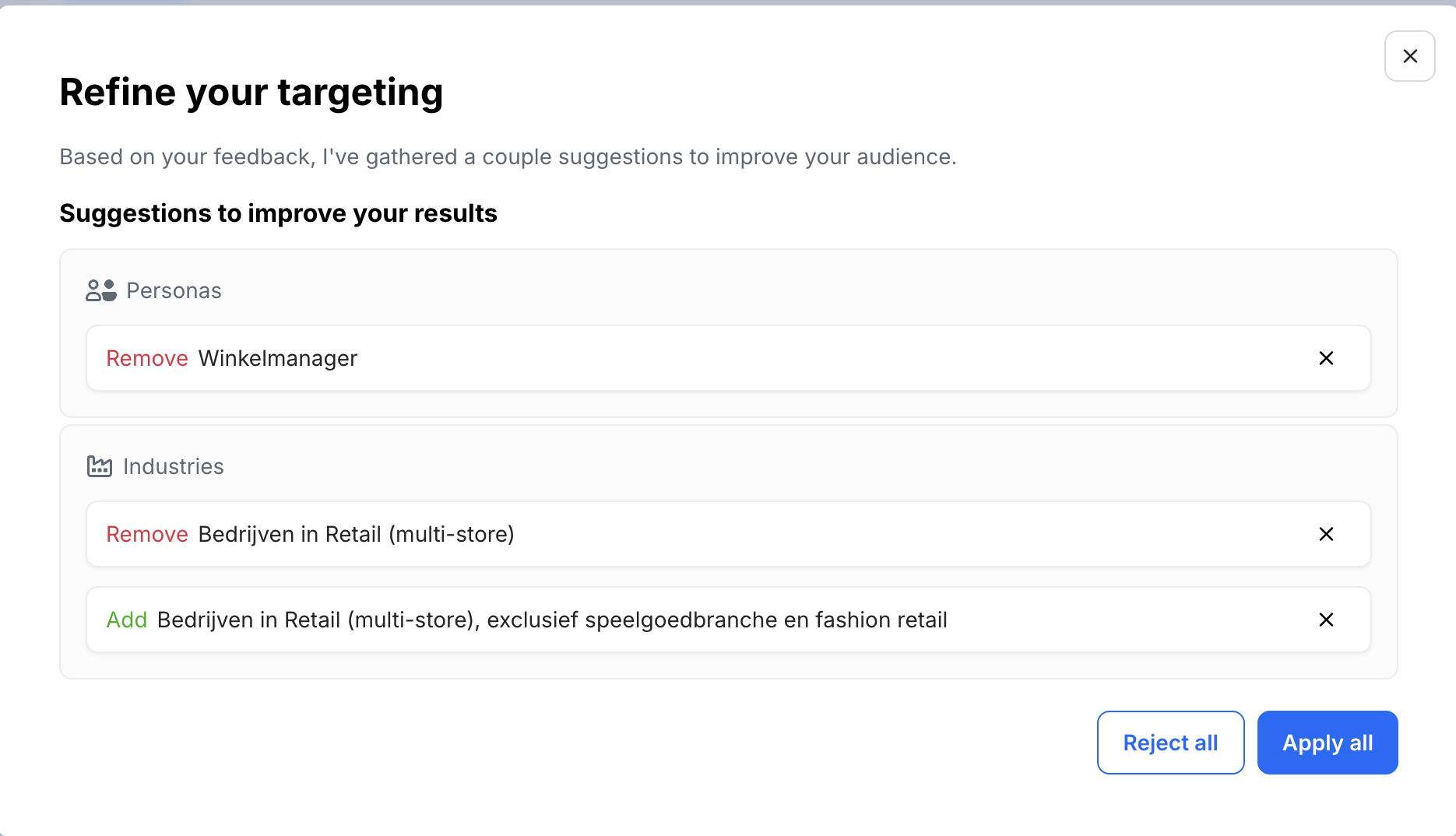
Click View Suggestions to see them. You can then:
Apply all suggested changes
Reject all changes
Delete specific suggestions and apply only the remaining ones
This ensures you stay in full control of how your agent evolves.
6. Waiting for the Next Batch
Once you’ve reviewed leads and handled suggestions, you’re done.
Your agent continues working in the background and will notify you when the next batch of leads is ready.
7. Pushing Leads to Your CRM
If you want to:
Automatically push approved leads to your CRM, or
Manually export leads
You can find detailed guides in our help center: https://bizzy-support.freshdesk.com/en/support/solutions/folders/202000257230
Was this article helpful?
That’s Great!
Thank you for your feedback
Sorry! We couldn't be helpful
Thank you for your feedback
Feedback sent
We appreciate your effort and will try to fix the article